

This is a paid feature. See plans and pricing, or talk to sales about an enterprise plan.
What is a project:
Projects help you organize automations and resources for different teams or areas of work. Each project has its own flows, connections, and tables, which are only shared with users who have access to that project. Being invited to the platform does not automatically give a user access to every project. Users only see the projects they have access to, while platform admins can access all projects.Why you need projects:
For example, each department can have its own project, so other departments can’t access its connections or credentials. In the following parts under this project section, we will explore everything that you do within a project.Personal and Team Projects:
In Activepieces, you have two types of projects: Personal projects: A personal project has a single member, its owner, so no other member of the platform sees its flows, connections, or tables. It gives users a safe space to experiment and try new ideas without affecting shared company projects or data. However, as with every project, platform admins and operators can still access it. Operators are automatically granted Editor access to every project on the platform, including personal ones, letting them view and modify its flows, connections, tables, and variables. New users get a personal project on signup by default. Platform admins can turn this off with Automatic personal project creation on the Platform Admin → Projects page — useful when you provision users into team projects manually, for example through SSO or SCIM. While it is off, new users start without a personal project and land on a team project they have been given access to instead.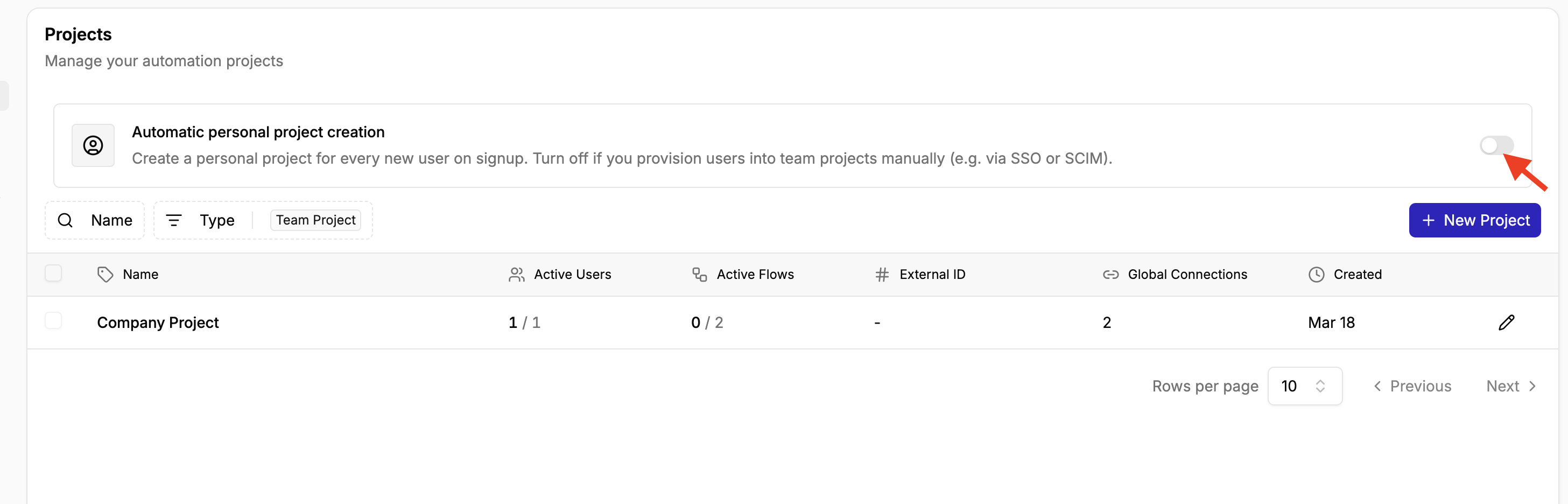 Team Projects: Team projects are shared workspaces where multiple users can collaborate on automations. Members of a team project can share access to its flows, connections, and tables. Team projects are useful for organizing and managing automation work that needs to be shared across a team.
Creating and Managing Projects
- Creating A New Project
- Managing Projects
- Inviting & Removing People From Projects:
- Changing Access or Roles
Project Settings
This is the main control area where you edit and update the project You can find it by clicking the settings icon inside your project dashboard. General: Here you can:- Edit the project name and change the theme color of the project
- Find and identify your project based on your SaaS ID
- Set your Maximum concurrent jobs: Maximum number of flows that can run at the same time for your project
- Set Active Flows Limit: Maximum number of enabled flows in your project. Leave empty for no limit.