

- The data from the trigger that started it, like a new email, a form submission or a new row in a sheet.
- The output of every step. Each output stays until the flow finishes, so later steps can use it.
- The output of every round of a loop, not only the last round.
- Any files the flow downloads, creates or changes, like PDFs, spreadsheets, images or CSV files.
- The data your Code steps work with.
How to tell a flow ran out of memory
In your run history, the run has the status Memory Limit Exceeded. When you open the run, you see a message like this one:Run failed due to exceeding the memory limit of 1024 MBThe number is how much memory the flow had. 1024 MB is 1 GB. Two other statuses look similar but have different causes:
The fixes for the other two are further down this page.
What to do when a run fails on memory
- Open the failed run and find the step where it stopped.
- Look at what that step and the steps before it produced. Look for very long lists, big files or large blocks of text.
- Pick the fix that matches what you found:
- A step brings in too much data: only bring in the data you need.
- A loop runs many rounds: move the loop’s work into a separate flow.
- A big CSV file: read it a few rows at a time.
- A big file: pass the file, not what’s inside it.
- A Code step: make it load and return less.
- Test the flow again, with data as big as your real data.
How to build flows that use less memory
These tips work on Cloud and on self-hosted installs. Most memory problems go away when you change how the flow is built, so try these first.Only bring in the data you need
Most memory problems start with a step that pulls in much more data than the flow uses. Change the step that fetches the data:- Use its filters, for example “only today’s orders” or “only unread emails”.
- Set a limit on how many records it returns, if the step has that option.
- Ask only for the fields you need, if the app lets you choose them. For example, just the name and email instead of the full customer record.
Work in smaller groups
Instead of handling 50,000 rows in one run:- Fetch fewer records at a time. Open the step that fetches your data and look for a field like Limit, Max Results or Page Size (the name depends on the app). Set it to a smaller number, for example 200.
- Run the flow on a schedule, for example every 15 minutes, and handle one group each time.
Move heavy loop work into a separate flow
A loop repeats the same steps for every item in a list, and it keeps the results of every round in memory until the flow finishes. Thousands of rounds add up fast. Instead, give each item a run of its own:- Create a second flow that handles one item. Start it with the Callable Flow trigger, which lets another flow start this one. Publish the flow and turn it on. A flow that’s off still shows in the list in step 2, marked (inactive), but the call fails when the main flow runs.
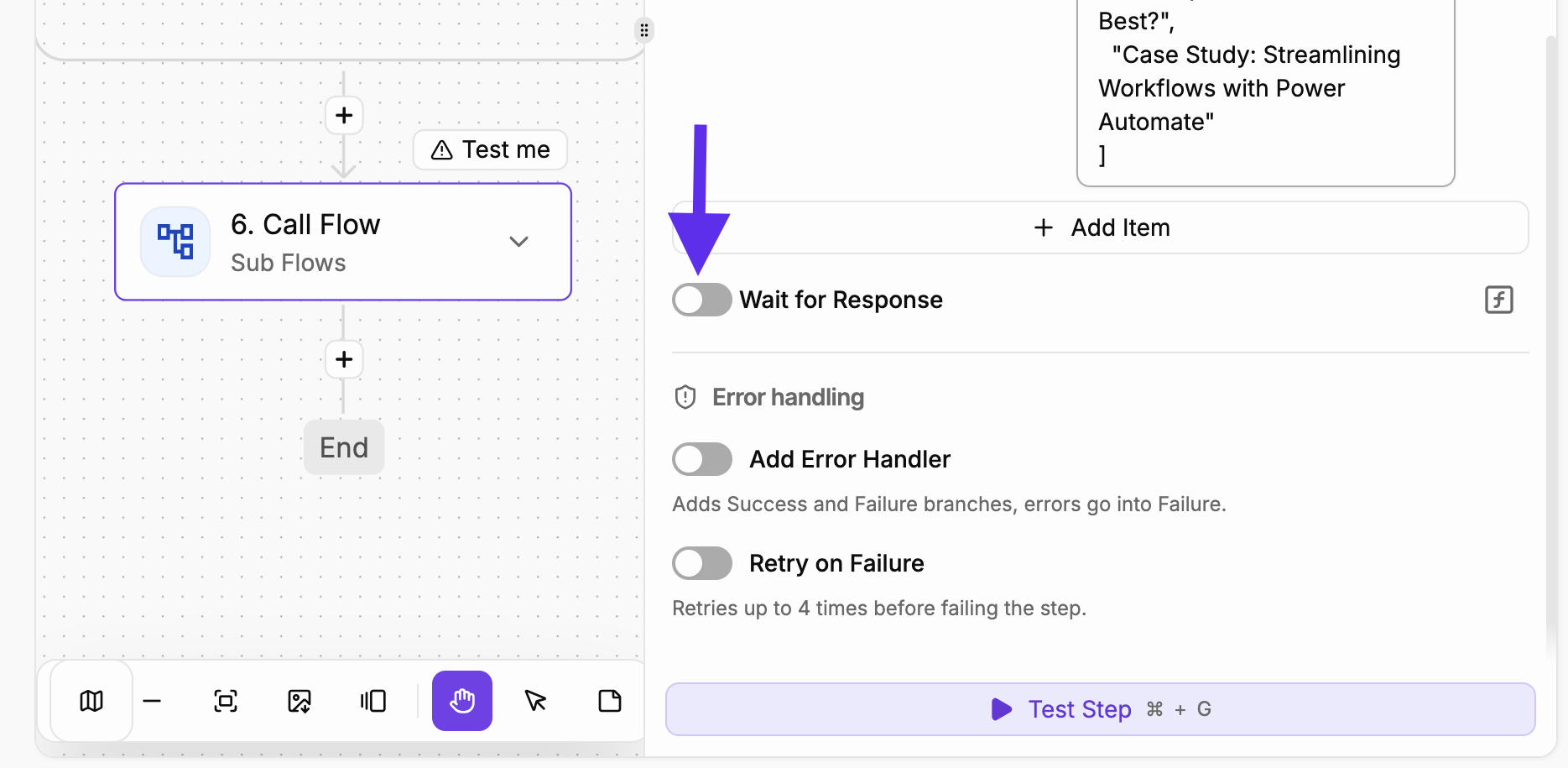
- In your main flow, add the Call Flow action from the Sub Flows piece inside the loop, and pick the second flow.
- Each item now runs in its own flow, with its own memory, so the main flow stays light.
Read big CSV files a few rows at a time
For CSV files with thousands of rows or more, use Stream CSV to Subflows from the Sub Flows piece. It reads the file a few rows at a time instead of loading it all at once, and it sends each batch of rows to another flow. The memory it uses depends on the Rows per batch setting, not on the size of the file. The default of 100 rows suits most files. For a very large file, give the step a link (URL) to the file. A file that comes from an earlier step has to fit within the file size limit for a step first (10 MB on Cloud).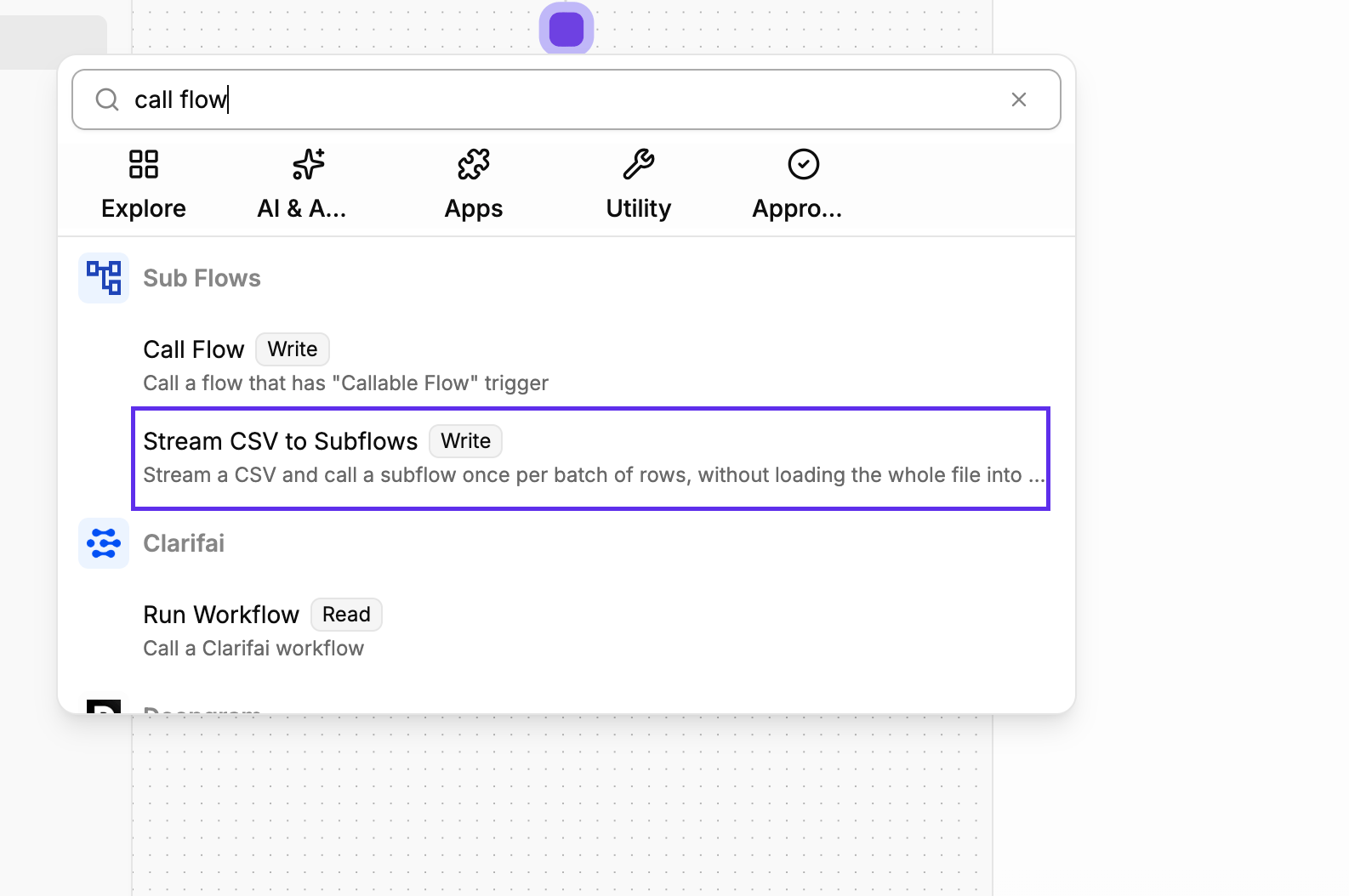
Pass the file, not what’s inside it
When a step gives you a file, pass the file itself to the next step. If you convert it to text first, the text can take several times more memory than the file.Save big data in Tables, not Storage
The Storage piece saves small values between runs, like a date, a counter or the ID of the last item processed. Each value can be at most 512 KB. For lists and records, use Tables, the spreadsheet-like tables built into Activepieces.Keep Code steps small
A Code step runs custom code that you or a developer write. To keep it light:- Return only the data the next steps need, not everything the code received.
- Don’t load whole files or very long lists inside the code.
Split big jobs into several flows
Some flows do several heavy jobs in a row, for example export data, clean it, upload it and then send a report. Split a flow like that into separate flows, and use Call Flow to start the next one. Each flow starts with fresh memory.Memory limits on Activepieces Cloud
On cloud.activepieces.com, these limits are the same for everyone and can’t be changed:
Each run gets its own memory. If one run runs out, your other flows keep running.
All the limits are in one place on the Limits page.
Memory on a self-hosted install
If your company runs Activepieces on its own servers, your IT team decides how much memory each flow gets. The number in the error message is your real limit, and it can be higher or lower than on Cloud.What’s a worker?
Flows run on workers. A worker is a machine, separate from the app you open in your browser, that takes flows from the queue and runs them step by step. Each flow runs in its own sealed-off space on the worker, called a sandbox, so it can’t see other flows’ data. A worker only holds a flow’s data while it runs the flow. The app saves your flows, runs and files, not the worker. To run more flows at the same time, your IT team adds more workers.When a flow needs more memory
You have two options:- Change the flow with the tips above. This is usually the fastest fix.
- Ask your IT team to raise the memory limit for flows.
For your IT team:
AP_SANDBOX_MEMORY_LIMIT sets the memory limit for each flow, in KB (1 GB by default). The recommended setup runs one flow at a time on each worker, with AP_WORKER_CONCURRENCY=1. See Production Setup and Limits.Memory when Activepieces is embedded in your product
Some companies build Activepieces into their own product, so their customers can create flows without leaving it. This is called embedding. Flows built in an embedded product use memory in the same way as any other flow. If you embed Activepieces, your customers can’t change any limits. It’s up to you to set things up well, and to help them when a flow runs out of memory. On Activepieces Cloud, your customers’ flows get the Cloud limits, and those can’t be raised. When a customer’s flow runs out of memory, the fix is to change how the flow is built. If you host Activepieces yourself, your IT team sets the limits. Many customers share your setup, so three choices matter most:- Run one flow at a time on each worker. Then one customer’s heavy flow can’t make another customer’s flow fail.
- Size workers for your heaviest customers, not your average one. Customers who process large files or long lists need more memory.
- On self-hosted Enterprise, give your biggest or most important customers their own workers with worker groups. Their flows then never wait behind anyone else’s.
- Show them their run history, so they can see when a flow fails and read the error.
- Share the tips on this page, or your own version under your product’s name.
- Tell them who to contact for help.
Fixing Log Size Exceeded
The flow ran, but it produced more data than its run history can save. The run history is the record of what each step received and produced, which you open to review a run. When you open the run, you see a message that starts with “Run failed due to output of steps exceeding the log size limit”. The limit is 25 MB per run on Cloud. On a self-hosted install it’s 50 MB by default, and your IT team can change it withAP_MAX_FLOW_RUN_LOG_SIZE_MB.
The causes are close to the memory causes, so the same fixes help:
- Bring in less data: filter, set limits, and ask only for the fields you need.
- Move heavy loop work into a separate flow. Every round of a loop is saved in the run history, and a separate flow gives each item a run history of its own.
- Pass files, not their contents. Converted file contents take a lot of space in the run history.
- Return only what the next steps need from Code steps.
- Split big jobs into several flows.
Fixing Timeout
The run took too long and was stopped before it finished. When you open the run, you see “Run exceeded … seconds, try to optimize your steps.” The limit is 10 minutes per run on Cloud. On a self-hosted install it’s 10 minutes by default, and your IT team can change it withAP_FLOW_TIMEOUT_SECONDS.
Only the time the flow spends working counts. Time in the queue, time waiting for an approval, and time in a Delay step don’t count. Very short delays are the exception: a Delay For of 10 seconds or less, or a Delay Until a minute or less away, runs inside the flow, so that time counts.
To fix it:
- Handle fewer items per run. Fetch records in pages, run the flow on a schedule, and handle one group each time.
- Move loop work into a separate flow. Each item then gets its own run, with its own 10 minutes. If the main flow waits for a response, the waiting doesn’t count toward its limit.
- Split big jobs into several flows. Each one gets its own 10 minutes.
- Look for slow steps. Open the run and check how long each step took: the time shows on each step. A slow step is often an app that answers slowly, or a step that fetches far more data than it needs.